
Zoom
Zoom offers built-in captions. Translated caption availability depends on the meeting settings and an eligible host account or add-on.
Official guideLiveTrans for Windows and macOS
Run a personal subtitle layer beside Zoom, Microsoft Teams, Google Meet, or a browser meeting. LiveTrans captures the system audio you select, transcribes it, translates supported language pairs, and keeps the resulting text available for review.
Available for Windows and Apple Silicon Macs running macOS 12.3 or later.
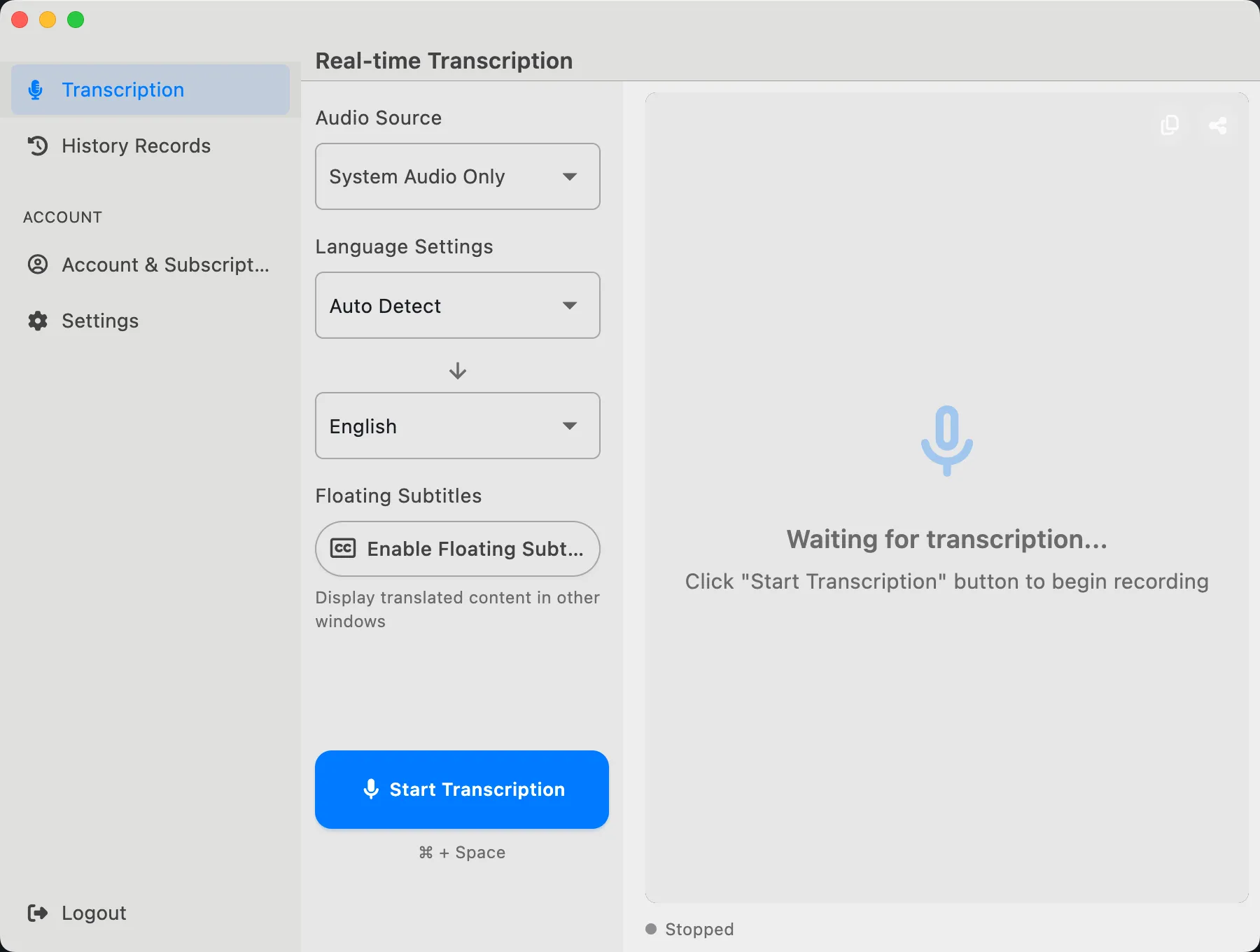
Use LiveTrans when you need subtitles for yourself and cannot rely on a meeting host, workspace admin, or meeting-platform add-on. It runs as a desktop app and does not join the participant list or claim an official integration with any meeting platform.
Reproducible setup
Set this up before the call so you have time to grant platform permissions and confirm the language pair.
01
Open LiveTrans and choose the system-audio source. macOS may ask for screen-recording permission because ScreenCaptureKit supplies the system-audio stream.
02
Pick the spoken language or use automatic detection, then choose the language you want to read. The app language selector is the current source of truth for supported options.
03
Start transcription, enable floating subtitles, and place the subtitle window where it does not cover meeting controls. Review saved text before treating it as a record.
Choose the caption path that fits
Meeting-platform captions may be the simplest option when they are available. LiveTrans is an independent participant-side option; it is not endorsed by or affiliated with these platforms.
Zoom offers built-in captions. Translated caption availability depends on the meeting settings and an eligible host account or add-on.
Official guideTeams offers built-in live captions. Translated captions can depend on the organizer or participant license and admin configuration.
Official guideGoogle Meet offers captions, while translated captions are limited to eligible Workspace editions and may vary by rollout.
Official guideData flow
LiveTrans captures the system-audio source you select on your desktop.
The selected audio is streamed over the network to integrated services used for transcription and translation. LiveTrans is not an offline-only or on-device-only system.
Text returns to the app for the main transcript, floating subtitles, and history available to your account and plan.
Limits to check first
No. It runs on your desktop and uses the system-audio source you select. It does not appear as a meeting participant.
LiveTrans does not need the host to enable a LiveTrans integration. You still need macOS capture permission and must follow meeting, organization, and consent rules.
No. The current workflow sends selected audio over the network to integrated services. Review the privacy policy before using LiveTrans with sensitive conversations.
No. Automated transcription and translation can contain errors. Review important text before relying on it as a record.
Yes. Leave LiveTrans open for the entire meeting so captions continue as the conversation goes on. Before you rely on them, confirm the selected audio source is producing captions. A short test alone is not enough; sustained use through the call is what helps.
Start free, then check plan limits and privacy details before your next meeting.